 DBA Voice
DBA VOICE / SETUP
Set up DBA Voice on your Mac
Follow the screenshots, one step at a time.
Follow these steps on the Mac that showed the warning.
Changing settings on a different Mac will not change the affected Mac.
01
Move it to Applications
Double-click the downloaded file (.tar.xz), then move the extracted DBA Voice app to Applications. No extra extraction app is needed.
Unpacking takes longer than the ZIP. Wait for it to finish, then open DBA Voice from Applications.
If you already downloaded the ZIP or DMG, keep using it; no new download is needed. Open the ZIP and move DBA Voice to Applications, or open the DMG and drag DBA Voice to Applications.
Requires an Apple Silicon Mac with macOS 26 or later. Download and requirements
02
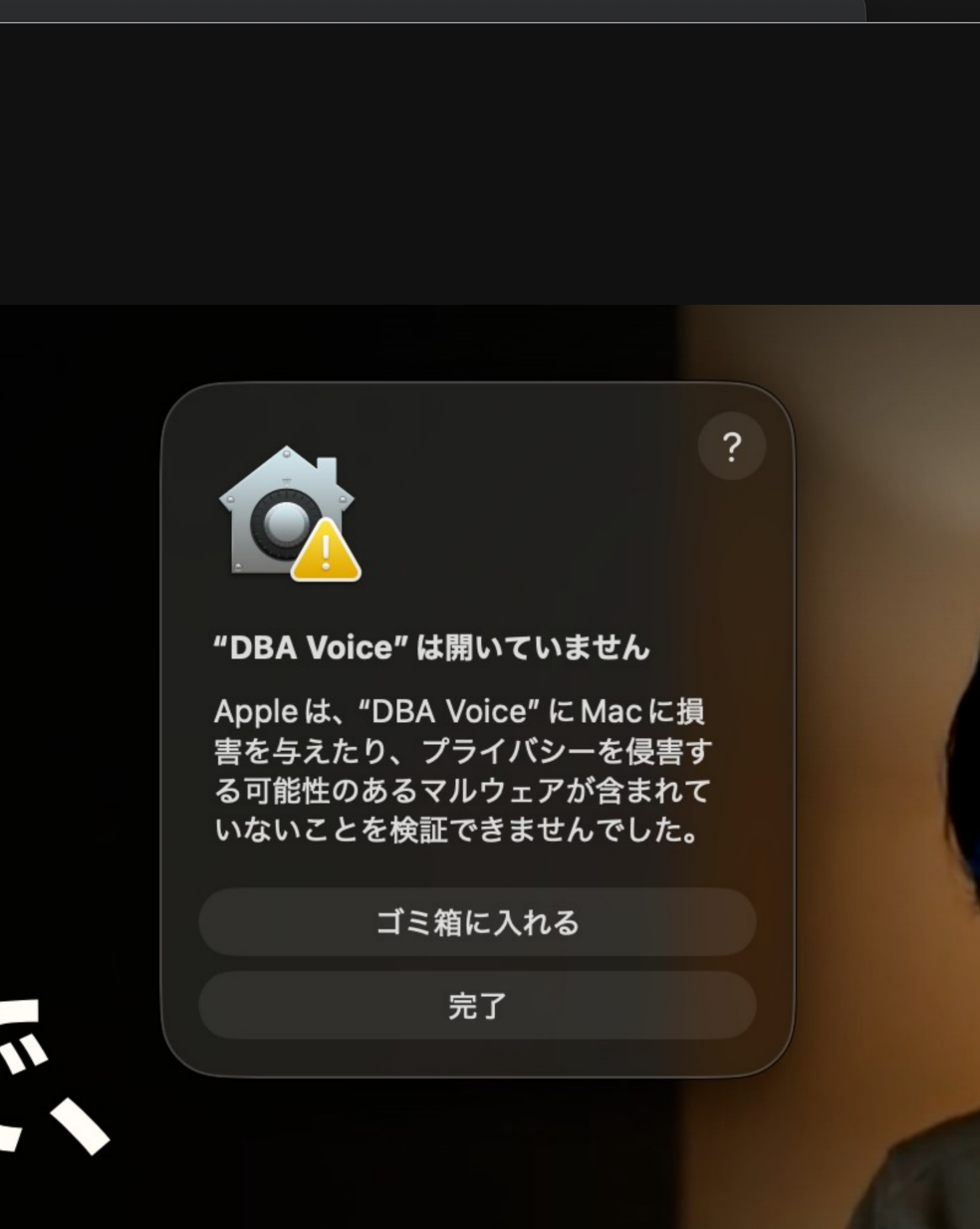
Dismiss the warning
If macOS says DBA Voice was not opened because Apple could not verify it, choose Done to dismiss the warning.
This early release has not been notarized by Apple. Check that you downloaded it from this website before continuing.
03
Allow DBA Voice to open
Use the same Mac that showed the warning.
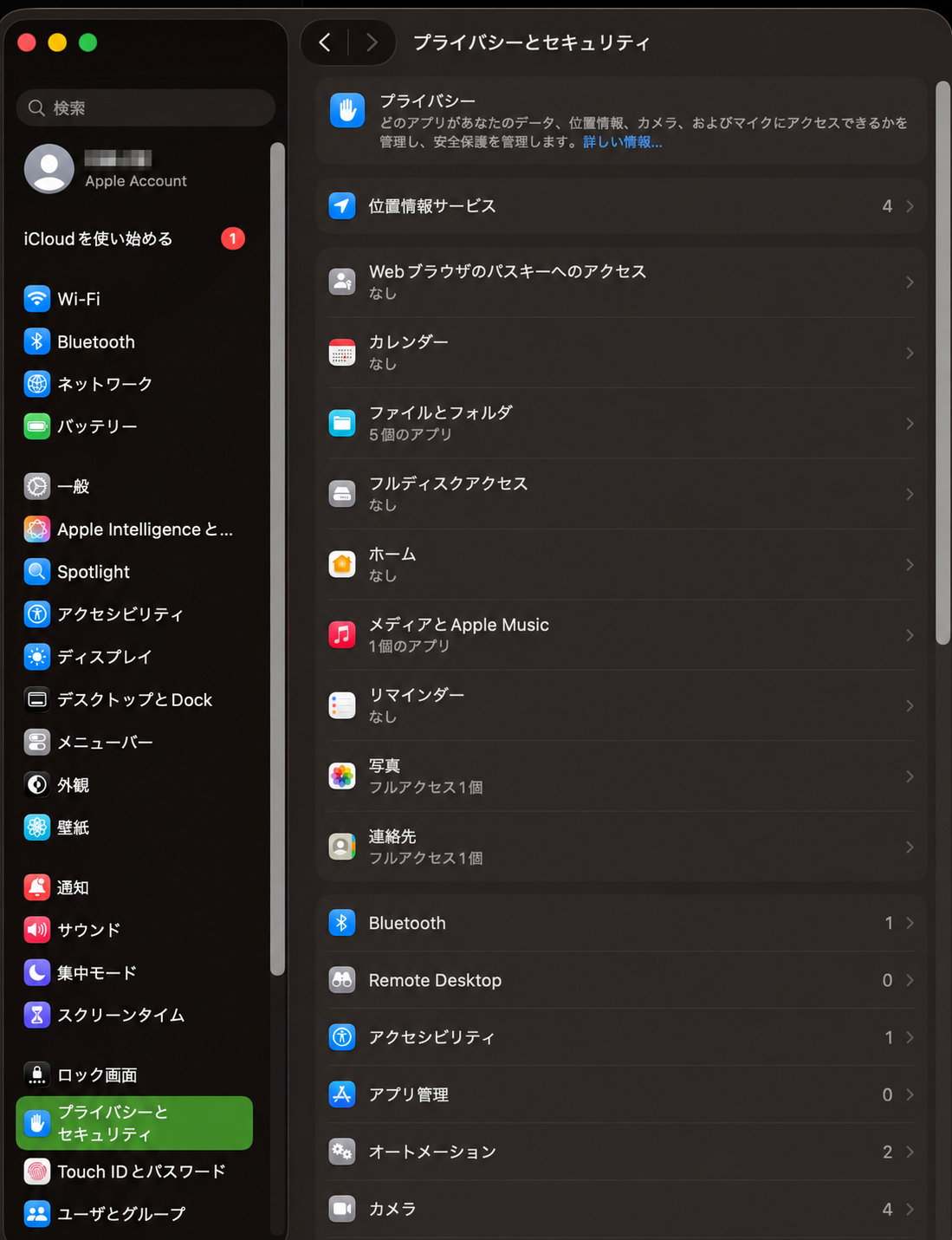
Scroll down the list on the right
Open System Settings → Privacy & Security. Scroll the content on the right down to Security.
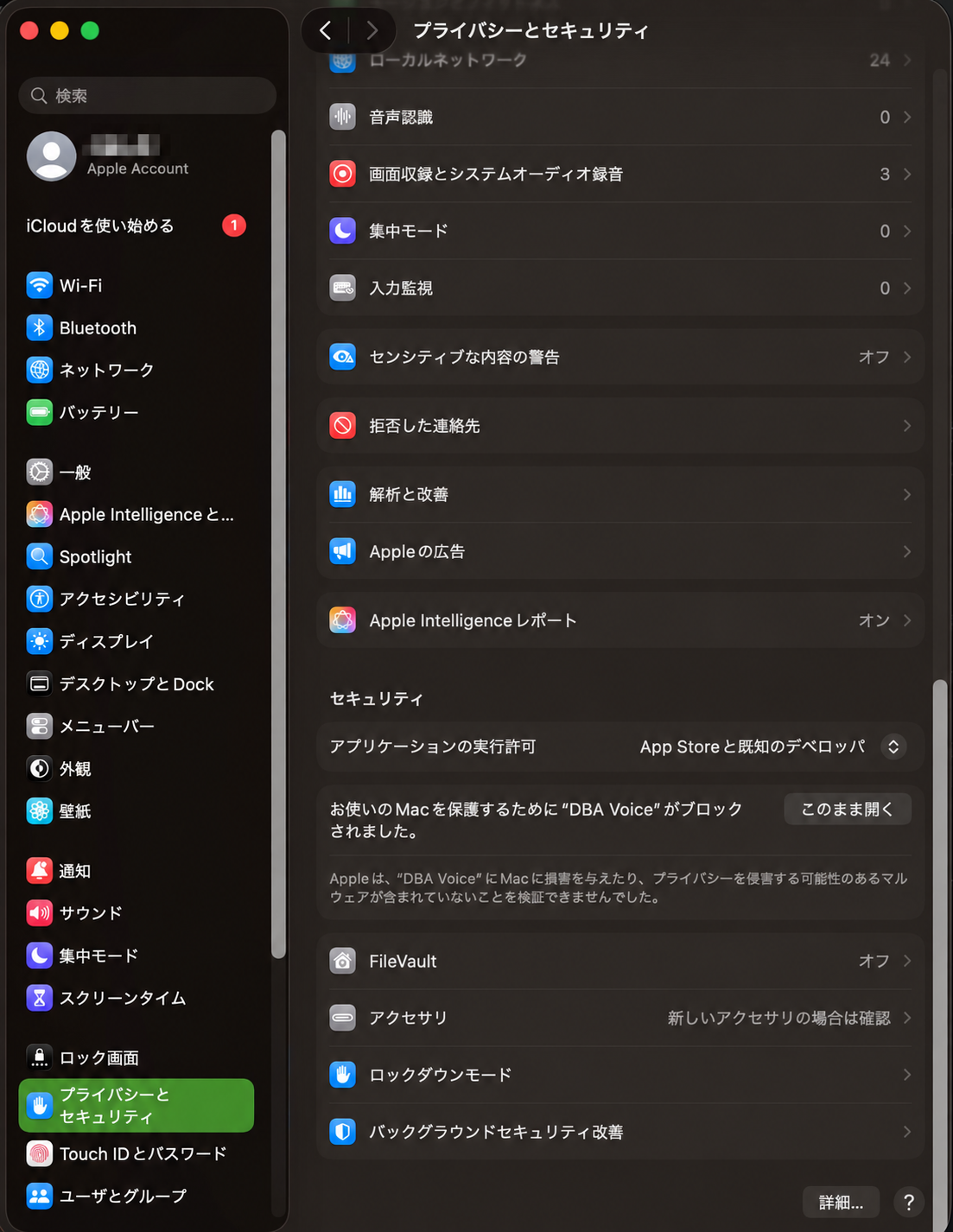
Choose Open Anyway for DBA Voice
Find the DBA Voice row immediately below Allow applications from. Choose Open Anyway on its right.
On macOS 26, you may first see Open, followed by Open Anyway. Follow the confirmation to open the app. If macOS asks for your password or Touch ID, complete that step yourself.
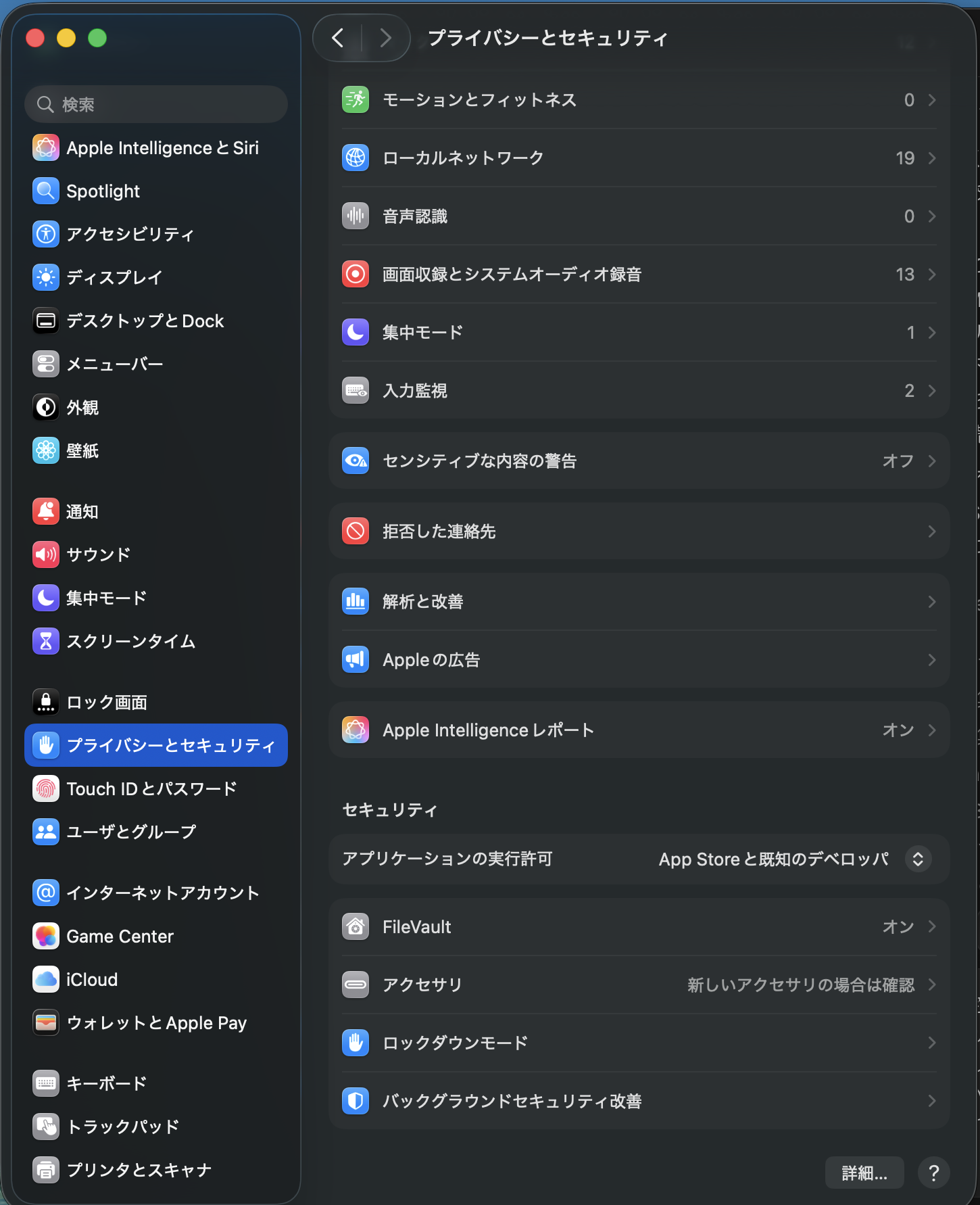
If you cannot find Open Anyway
A warning on another Mac does not create a permission row here. The override is available for about an hour after you try to open the app.
On the Mac that showed the warning, open DBA Voice from Applications again. Dismiss the warning, then immediately check this settings screen.
If the option is still missing, check the macOS version, the exact warning and where you opened DBA Voice. A managed work Mac may require help from its administrator.
04
Try voice input
After opening DBA Voice, allow access in these two places:
- System Settings → Privacy & Security → Microphone → turn DBA Voice on.
- System Settings → Privacy & Security → Accessibility → turn DBA Voice on.
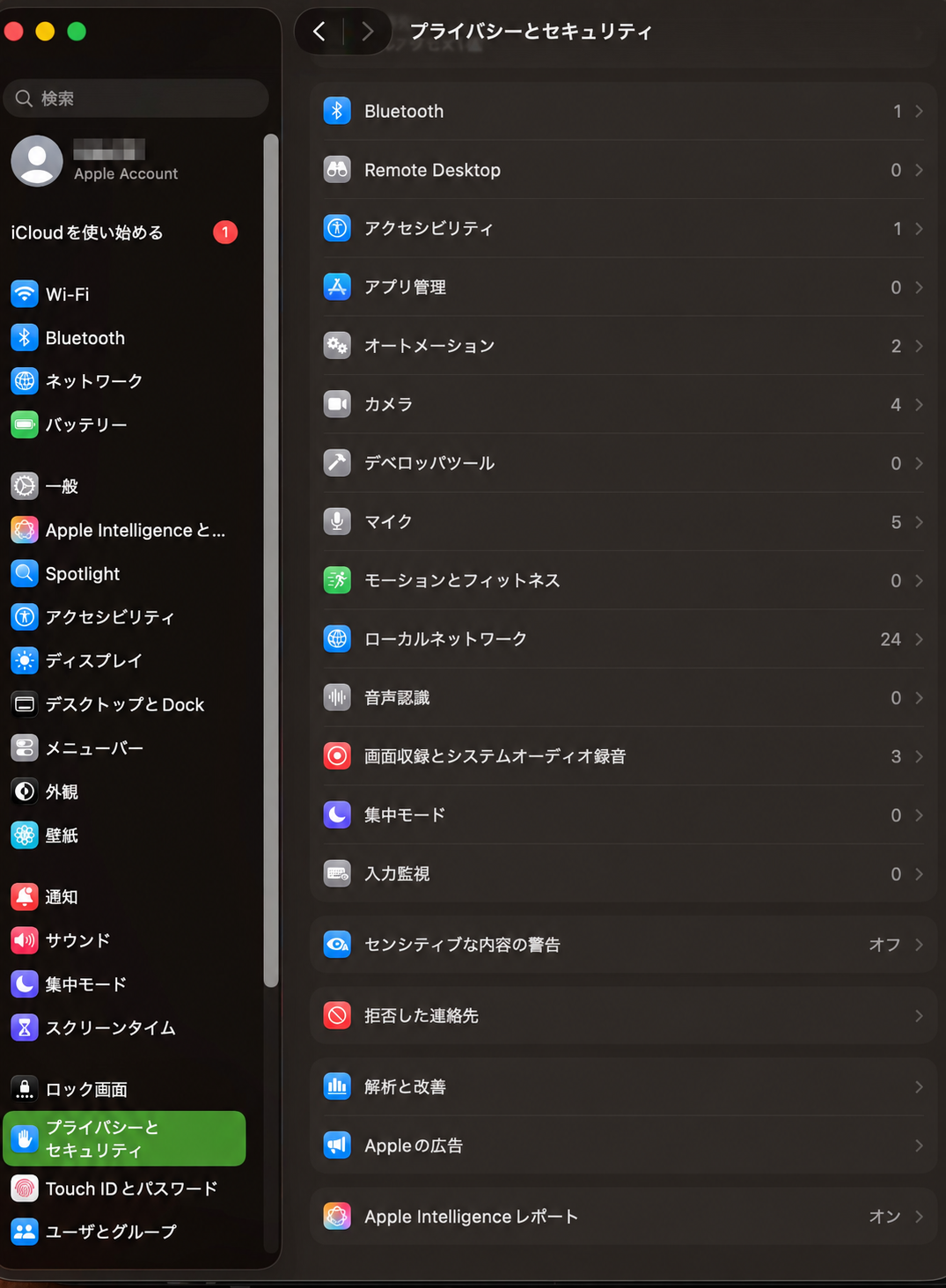
Click a blank text field, such as a new note. Hold the right Option key while saying「明日の会議は午後3時です」, then release the key. Check that the recognized text appears in the field.
To tidy up spoken corrections with AI
Enable Apple Intelligence on your Mac. In DBA Voice settings, use「文字起こし後の整え方」→「AIで言い直しを整える」. If AI is unavailable, speech recognition and basic text cleanup still work.
New cloud account registration is in preparation. Local voice input works without registering.
CLAUDE CODE / CODEX
Get help setting up with AI
On the Mac where you will use DBA Voice, give the text below to Claude Code or Codex. It asks the assistant to check each step with you.
If copying is unavailable, select the text or download the TXT file.